JMS 2.0 remote client for embedded HornetQ in Wildfly 8

While testing the new JMS 2.0 API, I wanted to see an example of the remote client connecting to a messaging server. I decided to start with the HornetQ messaging server that’s embedded into JBoss Wildfly 8. Folks from JBoss sent me a link to the the GitHub project Wildfly/Quickstart with lots of Wildfly Java EE 7 examples. The HelloWorldJMSClient was the one I was looking for.

The readme file contains detailed instructions on how to compile and run the example. Seeing a requirement to have Maven 3.1 or better looks like an overkill for a helloworld type example. Installed Maven using homebrew – it gave me Maven 3.0.5. Does it mean that helloworld wouldn’t work? Yes it does, but not because of the old maven version. The pom.xml has references to old versions of Wildfly.

In two days I’ll be teaching a JMS class online. Sending students to the maven maze is not appealing to me. Here’s what I suggest. Follow the instructions from the Readme.md to start the Wildfly server, create a user, and a queue. But then, compile and run HelloWorldJMSClient by simply adding jboss-client.jar to the classpath – it has all required JNDI and JMS classes. For example, this is how you can do it from a Terminal window (or a Command Window):

java -cp “.:/Users/yfain11/wildfly-8.0.0.Final/bin/client/jboss-client.jar” org.jboss.as.quickstarts.jms.HelloWorldJMSClient

That’s all. Look ma, no Maven! I sent a GitHub pull request to the Wildfly folks to add this solution to their readme file.

If you like working in IntelliJ IDEA IDE, just add the jboss-client.jar as an external library to your module. If you are an Eclipse fan, go to Project Properties | Build Path and add the jboss-client.jar as an external jar.

A bit later I’m planning to do the same test against GlassFish/OpenMQ combo. I know that in the past they were suggesting using appclient for these purposes, but there should be a simpler way to do stuff.
How to move from Yahoo! mail to GMail

First, there was no GMail.  There were Yahoo!, hotmail, aol, and other OK email services.  At work, we were forced to use Microsoft Outlook. I happened to select Yahoo!. It had simple to use interface and it worked. Then Google created an exemplary GMail single-page Web client plus smart spam filtering on the server.

I opened an email account yakovfain@gmail.com. I’m not afraid of spam otherwise I would have written a naive yakovfain at gmail dot com. Yeah, right!  Now I got two email accounts.

Yahoo! looked at GMail, and decided: “Me too”.  But it’s easily said than done. It looks like their engineering team that works on Yahoo! email client had no budget to hire people with the right skills, and over the last several years their Web interface was steadily changing from bad to worst.

If there was a world competition for the Worst Rich Internet Application, Yahoo! mail client would have easily won the gold medal. Everything is inconvenient and non-intuitive there. Scrollbars barely work.  You can’t simply highlight and copy the email of a recipient – need to go through a popup menu that will work every other time. You can’t create a filter to put messages on a particular folder. It simply feels bad.

I did’t want to close my Yahoo! mail account because lots of people have it in their Contacts.  Finally they got me today. After complaining about it to my younger son, he just asked, why won’t you just forward all of Yahoo! emails to your Gmail account?  And why wouldn’t I?

For years my GMail client is pulling all my work emails for our company’s mail server. I could have set Yahoo! the same way.  But I didn’t want my Yahoo account to accumulate any emails sent to me. After quick search I found an easy way to set up the mail forwarding without storing.  This is how I did it:

1. Click on the Gears icon on top right, and select Settings.

2. Select the Viewing Email on the left and then switch from Full Featured (tecommended by them) to Basic (recommended by me).

3. Select Option in the dropdown on the top right.

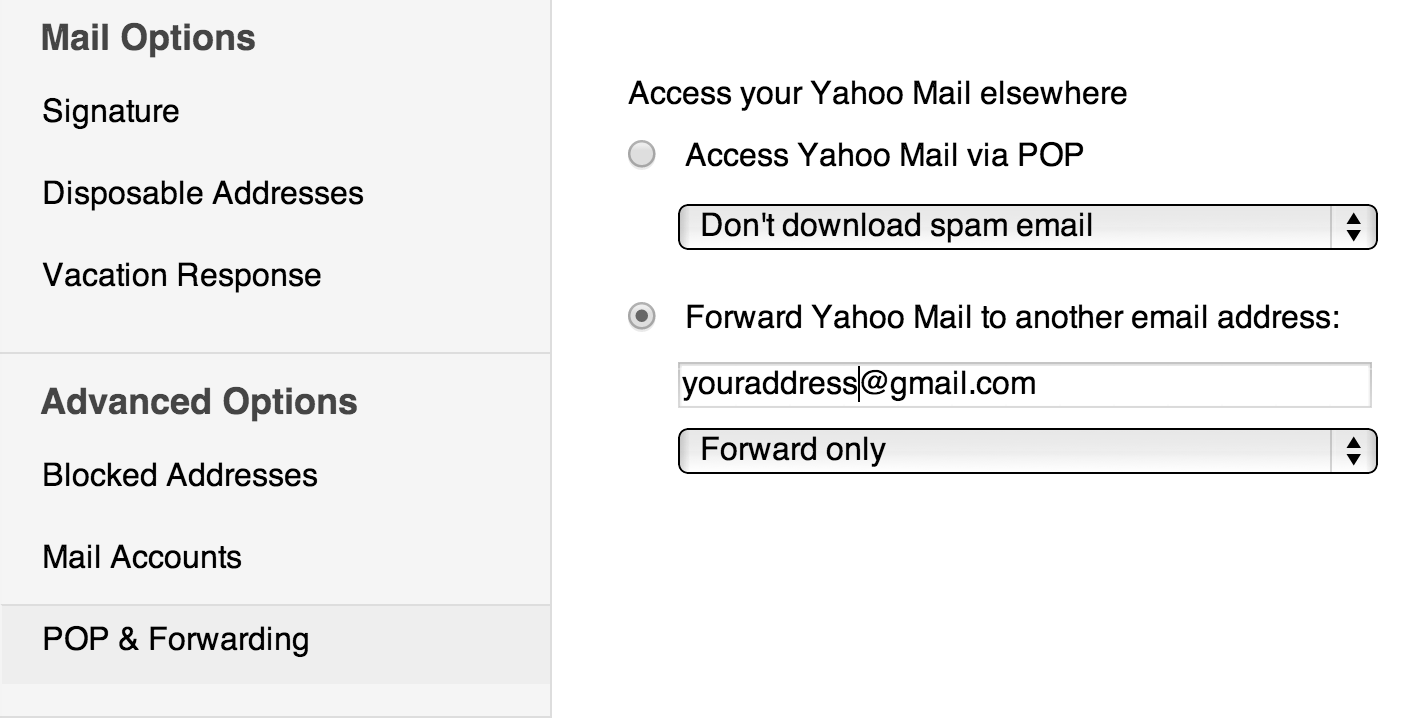
4. On the left hand side select Pop & Forwarding.

5. Enter your gmail address on the right and Forward only in the dropbox.

yahoo

This way you still can keep your Yahoo! mail account, but all new emails will be forwarded to your gmail account. In the Mail Accounts section you can set your email address in the the Reply To  box, so gradually, your contacts will get used to the fact that you’re using gmail now.

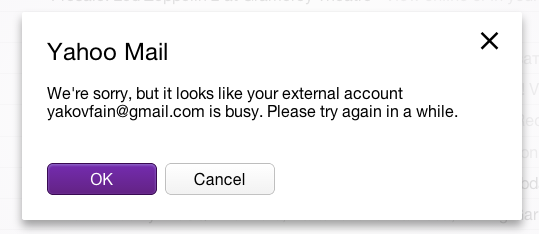
Hope this helps… for most of the messages. But Yahoo! can’t even forward the email properly. Sometimes it can blame your external accounts and even steal messages from it. Oh, this Yahoo!


yahoo


First we take Crimea, then the Internet

I’m sure you like the music by Leonard Cohen. One of his hit-songs  has the words “First we take Manhattan, then we take Berlin“. The Russian authorities sing it differently: “First we take Crimea, then the Internet”.

Yesterday, Russian authorities started blocking dou.ua – the main Internet portal for Ukrainian software developers. I write a column for this portal too. Now people who live in Russian Federation can’t read it unless they’ll go an extra mile and use one of the foreign-hosted proxy servers to sneak in.

Russian authorities want to be able to control the content published within the country as well. It’s not about preventing kids from watching porn. It’s about being able to turn off any Web site that publishes the info that contradicts with the current views of the rulers.

The next candidate for blocking is a popular and reliable hosting service CloudFlare from California. Lots of Russian Web sites are being hosted by CloudFlare. Russian authorities tried to shut some of them down but CloudFlare ignored their requests, which is pretty humiliating, isn’t it? This resulted in the publication (on the gov.ru) that recommends Russian Internet resources not to use CloudFlare as a host or else.Here’s the original version of this document, and this is its English translation made by Google .

Based on the wording of this article, all the sites that use CloudFlare will be blocked, and of course, Roskomnadzor deeply regrets that some of the quality Internet resources won’t be available in Russia just because they happen to select the “bad hosting company”. Sure, it’s a lot cheaper to block the access to anything-ClourFlair that to hire IT professionals and block access to only those sites that violates Russian laws. But this is just how dictatorships work.

So far there are 2000 blocked Web sites in Russia. It doesn’t seem to include any porn sites. Some of them are online casinos, some sell grass, some sell fake driver licenses, some sell university diplomas.  Luckily, I live in the USA and can visit all these banned sites. At the time of this writing I have Master Degree in Applied Math.  If later this year you’ll see “PhD” next too my name, you’ll know where I got it from.


Using URL Shorteners in Technical Documents

I spend a large portion of my time preparing courseware materials, writing books and technical documentation. These documents include hyperlinks, and some of them can be a 100+ character long. Do you include the long URLs in your docs? The immediate answer is to use one of the services like bit.ly, tinyurl.com, is.gd and the like.Beside shortening URLs the may offer other services like click-stats or real-time analytic data.

But all of these services are backed by rather small companies. What if your preferred URL shortener is out of business, but thousands of your books are being sold by the booksellers? This is a bummer! What if all your courseware is sprinkled with these short URLs? Need to schedule an extra time for producing and publishing a revised version of the courseware.

If one of the big guys like Google or Microsoft would acquire such a shortener, I’d sleep a little better. Meanwhile, the only suggestion I can make to use the full title of the linked article in your technical writings. In this case if the hyperlink gets broken, the readers can google up the article by title.

For example, here’s the original 160-character URL of the article about default methods in Java:
http://java.dzone.com/articles/java-8-default-methods-what?utm_source=feedburner&utm_medium=feed&utm_campaign=Feed:+javalobby/frontpage+(Javalobby+/+Java+Zone)

If you are familiar with Web programming, you can try to get rid of everything after the question mark, which will shorten the URL to 59 characters:

http://java.dzone.com/articles/java-8-default-methods-what

It worked fine with this URL. Using bit.ly shortener will turn it into a 22-character URL:

http://bit.ly/1etZ5Nf

And here’s what you should not do in your technical document:

“Dear reader, to get familiar with the default Java methods please read this Web page“. If for any reason the bit.ly service is not operational, the readers of your document has no clue of how to find it. But if you use the shortened URL providing the title of the article, most likely that the reader will be able to find it:

“Dear reader, to get familiar with the default Java methods please read the article Java 8 Default Methods: What Can and Can Not Do?” by Peter Verhas. This leave the reader with enough keywords for the article lookup even if the link is broken. Besides, you are doing a good thing by mentioning the name of the author of the article.

Unfortunately, URL shorteners may cause lots of redirections until you get to the actual destination. Spammers love the URL shorteners as well.

Categories Web