Oracle starts catering to JavaScript community with JET

During the last several years Oracle was working on their cloud solution, and several internal teams were creating JavaScript-based Web interfaces for the cloud. At some point Oracle decided to standardize on the set of JavaScript libraries used internally, and they also developed a set of reusable Web UI components both simple (e.g. buttons and forms) as well as complex (data grids, charts, accordion, and fancy gauges). All these components are based on jQuery UI and are responsive, so they can be used on mobile devices.

Having a nice set of UI components is great, but is not enough for building Web applications, so Oracle selected several popular JavaScript libraries to support routing, data binding, module loading et al.

All these things packaged together got a name JET (see oraclejet.org), which is a toolkit for developing front end in JavaScript.

After downloading and unzipping one file you’ll get a set of well-known libraries (e.g. RequireJS, Knockout et al.) plus the library of the UI components developed by Oracle.

Based on the demo I’ve seen, it’s pretty easy to put up an application together using these components. Selecting any component from the JET Cookbook shows you a sample code that you can copy/paste in your HTML or JavaScript code.

I’ve asked Geertjan Wielenga, one of the JET product managers, if it’s possible to replace one of the libraries included into JET with another one. He responded positively and pointed me to this blog that shows how to use JET with AngularJS.

I’d be interested to see if JET’s UI components can be used together with other WebComponents-based libraries like Google Polymer. The other thing that I’d like to see if it’s possible to replace the module loader RequireJS with SystemJS that supports loading modules of different formats (including ES6 ones).

A JET plugin for the NetBeans IDE includes a convenient debugger that can be used inside the IDE. Oracle will offer support for JET, which is important for enterprise folks.

At the time of this writing the JET Website reads “Don’t use it in production (except if you’re an Oracle Cloud customer)”, but Oracle will open source it at some point in the near future, so everyone can use it both dev and prod. If I’m not mistaken, this will be the first organically open sourced Oracle product. By “organically” I mean that it came out of Oracle’s own initiative, rather than out of the takeover of another company. Try it out.

Why Java Developers Will Embrace Angular 2 and TypeScript

Most of the Java developers I know don’t like JavaScript. Initially. They would give you different reasons why, but the real one is simple: too much to learn to make it work. For many Java developers creating the front end of a Web application in JavaScript is a chore to write and a burden to maintain. Nevertheless JavaScript rules in Web development and the new version of JavaScript (ES6) will make it even more popular.

ES6 offers classes, standardized module definition, arrow expressions (lambdas), predictable “this” and a lot more. Firefox and Chrome already support most of the ES6 syntax, and other browsers are getting there as well.

But there is something better than ES6: the TypeScript language, which has most of what ES6 has to offer plus types, casting, interfaces, generics, and annotations. The TypeScript code analyzer will help you to see syntax errors even before you run the program. Code refactoring works as well. In this blog I stated the main reasons of why TypeScript is the right tool for JavaScript development.

Now let’s take a quick glance at Angular 2, a complete re-write of the popular open-source framework managed by Google. There were two Beta releases of Angular 2, and it’s safe to start using it for your next Web project unless your app has to go to prod in the first half of 2016. Angular 2 is stable enough for serious development, and I know this first hand after surviving a couple of dozens of alpha releases of Angular 2.

Disclaimer. You can write Angular applications in the current JavaScript (ES5), next JavaScript (ES6), Dart, or TypeScript. Based on my experience with all these languages using TypeScript is the best option.

What makes the Angular 2/TypeScript combo so appealing to Java folks?

First of all, the code looks clean and easy to understand. Let’s do an experiment. I’ll give you a two-paragraph intro on how to write an Angular component in TypeScript followed by the sample code. See if you can understand this code.

Any Angular application is a hierarchy of components represented by annotated classes. The annotation @Component contains the property template that declares an HTML fragment to render by the browser. The HTML piece may include the data binding expressions, which can be represented by double curly braces. If a view depends on other components, the @Component annotation has to list them in the property directives. The references to the event handlers are placed in the HTML from the @Component section and are implemented as the class methods.

The annotation @Component also contains a selector declaring the name of the custom tag to be used in HTML document. When Angular sees an HTML element with the name matching a selector, it knows which component implements it. The lesson is over.

Below is a code sample of a SearchComponent, and we can include it in an HTML document as <search-product> because its declaration includes the selector property with the same name.

@Component({
  selector: 'search-product',
  template:
     `<div>
          <input #prod>
          <button (click)="findProduct(prod.value)">Find Product</button>
          Product name: {{product.name}}
        </div>
    `
})
class SearchComponent {
 
   product: Product; // code of the Product class is omitted

   findProduct(prodName: string){
    // Implementation of the click handler goes here
   }
   // Other code can go here
}

A Java developer can read and understand most of this code right away. OK,ok. I’ll give you more explanations. The annotated class SearchComponent declares a variable product, which may represent an object with multiple properties, one of which (name) is bound to the view ({{product.name}}). The #prod is a local template variable that stores a reference to the input field so you don’t need to query DOM to get the entered value.The (click) notation represents a click event, and the event handler function gets the argument value from the input field.

Note that the HTML template is surrounded with the back tick symbols, which allow you to write the markup in multiple lines in a readable form. If you prefer to store HTML in a separate file instead of template use the templateURL property:

templateUrl: './search.html' 

Dependency Injection. Angular architecture will be very familiar to those who use Spring framework or Java EE. Angular comes with the Dependency Injection (DI) module, which instantiates an object using a registered class or a factory and injects it to the application component via constructor’s arguments. The following code will instruct Angular to instantiate the class ProductService and inject it into the ProductComponent:

@Component({
   providers: [ProductService]
})
class ProductComponent {
product: Product;
 
  constructor(private productService: ProductService) {
 
     this.product = this.productService.getProduct();
  }
}

Specifying the provider and declaring the constructor with the type is all you need for injecting the object. Application components form a hierarchy, and each component may have its own injector. Injectors are not singletons.

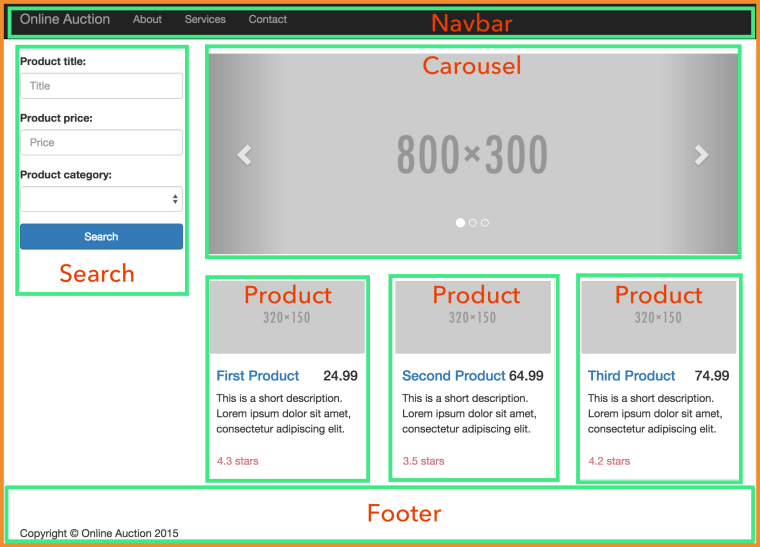
App structure. The following image shows what the main page of a sample application is made up of. The parent component includes child components, which are surrounded with green borders.

ch2_auction_home_page_components

Router. Angular shines in development of single-page applications (SPA), where the entire Web page is never reloaded. Angular router allows you to easily configure the page fragments (the views) that should be loaded based on the user’s actions. The code snippet below includes the annotation @RouteConfig that configures two routes Home and ProductDetail, which are mapped to the corresponding components (HomeComponent and ProductDetailComponent). The user navigates the application by clicking on the links with the corresponding routerLink attribute, which will display the requested component in the area marked as <router-outlet>.

@Component({
    selector: 'basic-routing',
    template: `<a [routerLink]="['/Home']">Home</a>
              <a [routerLink]="['/ProductDetail']">Product Details</a>
              <router-outlet></router-outlet>`,
    directives: [ ROUTER_DIRECTIVES]
})

@RouteConfig([
    {path: '/',        component: HomeComponent, as: 'Home'},
    {path: '/product', component: ProductDetailComponent, as: 'ProductDetail'}
])
class RootComponent{
}

Inter-component communication. Each component in Angular is well encapsulated, and you can create it in a losely-coupled manner. To pass the data from the outside world to the component just annotate a class variable(s) with @Input() and bind some value to it from the parent component.

class OrderComponent {

    @Input() stockSymbol: string; 
    @Input() quantity: number; 
}

To pass the data from the component to the outside world, use the @Output annotation and dispatch events through this variable. Dispatch to whom? Ain’t none of the component’s business. Let’s whoever is interested listen to this event, which can be either a standard or a custom event carrying a payload.

class PriceQuoterComponent {
    @Output() lastPrice: EventEmitter<IPriceQuote>  = new EventEmitter(); 
 ...
    this.lastPrice.emit(priceQuote)
 }   

See something familiar? You got it. That thingy in the angle brackets after EventEmitter denotes a generic type, and IPriceQuote can be an interface. TypeScript supports generic and interfaces.

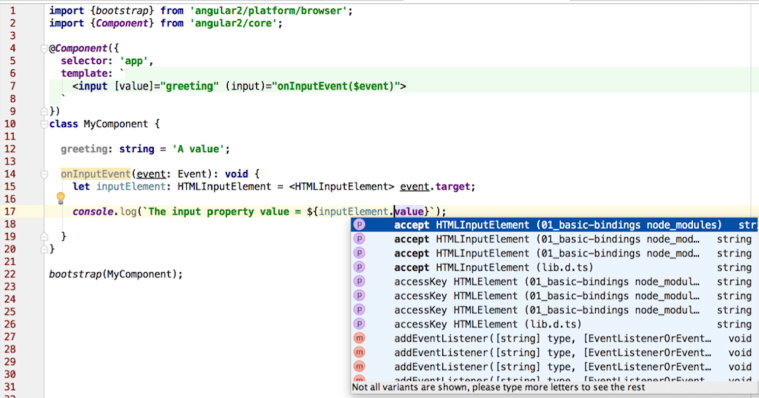
Casting. TypeScript supports types, classes, and interfaces (class A extends B implements D, E, F). It support type casting as well. As in Java, upcasting doesn’t require special notation. To denote downcasting surround the target type with angle brackets and place it before more general type as shown in the screenshot below.

casting

I took this screenshot after placing the cursor before value in line 17. I use WebStorm 12 IDE (a little brother of IntelliJ IDEA), which supports TypeScript quite nicely (including refactoring), and this supports improves with every minor release of WebStorm. If I wouldn’t declare the variable with the type in line 15 and wouldn’t use casting, the code would still work, but the IDE would show value in red and the code completion wouldn’t work in line 17.

Streams and lambdas. These are big in Java 8. Angular 2 incorporates RxJS, the library with react extensions, where streams is a religion. Everything is a stream in RxJS, and Angular 2 promotes using observable streams and subscribers.
Even events are streams, can you believe this? The user types in an HTML input field or is dragging the mouse, which generates a stream that you can subscribe to (think observer/observable or pub/sub).

Make an HTTP request or open a WebSocket and subscribe to the observable stream, which is a Promise on steroids. Handling results is still an asynchronous operation, but as opposed to a Promise it can be cancelled.

In Java 8 you can run a stream through a number of changed intermediate operations (e.g. map()) followed by a terminal one. In Angular 2 you can do the same:

class AppComponent {

  products: Array = [];

  constructor(private http: Http) { 

    this.http.get('/products') 
        .map(res => res.json()) 
        .subscribe(
            data => {
              if (Array.isArray(data)){
                this.products=data; 
              } else{
                this.products.push(data);
              }
            },
            err =>
              console.log("Can't get products. Error code: %s, URL: %s ",  err.status, err.url), 
            () => console.log('Product(s) are retrieved') 
        );
  }
}

If the above code requires explanations, then your Java is a little rusty. Seriously.

Module loading. One of the important features that ES6 brings to Web development is standardization of modules. The application code consists of modules (typically one module is one script file). Using the export keyword (e.g. export class Product {...}) you specify which members of the module should be exposed to other scripts. Accordingly, a script can include one or more import statements to have access to other modules.

ES6 includes the syntax for importing/exporting modules, but the standardization of the module loader System is postponed, and we use the polyfill SystemJS that can load modules of all existing formats (including ES6). When the System object will become standard in all browsers that support ES6, you won’t need to change your code (removing the polyfill is all that’s needed).

The main HTML file of he Angular/TypeScript application simply includes the configuration of the loader and transpiler (the running code must be compiled to JavaScript) and import statement of the main application component:

<body>
  <app>Loading...</app>

  <script>
    System.config({
      transpiler: 'typescript',
      typescriptOptions: {emitDecoratorMetadata: true},
      packages: {app: {defaultExtension: 'ts'}}
    });
    System.import('app');
  </script>
</body>

In the above code snippet the System object imports the module from the file app.ts, which is a root component of the application and may have child components represented by custom HTML tags. The System loader reads all import statements in each application component and loads all dependencies accordingly. Lazy loading of the modules is supported as well.

Deployment. Java developers use build tools like Maven or Gradle for deployment. Guess what, Angular developers use them as well. The TypeScript code needs to be transpiled into JavaScript, minimized and obfuscated before deployment to QA or prod servers. Some people use Grunt, some Gulp, but we use Webpack for bundling the code and npm scripts for deployment. The jury is still out on the best build automation tools, and we keep our eyes open.

I hope that after reading this blog thousands (ok, hundreds) of Java developers will want to take a closer look at Angular 2. Start with Angular architecture.

In this blog I showed you just a tip of the iceberg. You’d need to invest some time in learning Angular 2 and TypeScript, but the learning process isn’t too steep for the Java folks. If you want to make this process as pleasant as it can be, get the book that I’m co-authoring or enroll in one of our training classes.

IMHO Angular 2 will make as big of an impact in the JavaScript community as Spring Framework has in the Java world.

One more thing… View rendering is implemented in a separate tier, which means that it doesn’t have to be HTML only. You will be able to implement mobile applications that will use native iOS or Android UI components. The folks from Telerik are working with the Angular team to integrate this framework with NativeScript (read this).

Two-way Data Binding in Angular 2

By default Angular 2 doesn’t use a two-way data binding. It uses a unidirectional binding but if offers you a simple syntax for a two-way data binding if need be. In this blog I’ll show you an example of such syntax.

One-way binding from the UI an Angular component is arranged by surrounding an event name with parentheses:

<button (click)="onClick()">Get Products</button>

<input placeholder= "Product name" (input)="onInput()">

The one-way binding in the opposite direction is denoted by surrounding an HTML attribute with square brackets. The greeting is a property of an Angular component in this line:

<input [value]="greeting" >

There is also a template binding that allows to add/remove HTML elements to the DOM tree. The following line will add the only if a boolean flag is true, for example:

<span *ngIf="flag">Flag is true</span>

In limited cases you may want to use two-way binding, and you can specify it by adding the ngModel directive as an HTML attribute surrounded with both parentheses and square brackets, for example:

<input [(ngModel)] = "myComponentProperty">

In other frameworks two-way binding is popular with forms where you often needed to synchronize values of the form fields with the underlying model. While Angular also allows you to map each form field to the corresponding property of the model object there is a better way to handle forms and I’ll write about it in a separate blog. Still, there are some cases when using ngModel may be handy, so let’s get familiar with the syntax.

Say the landing page of a financial application allows the user to check the latest prices of the stock by entering its symbol in an input field. Often the user enters the same stock that he owns or follows, e.g. AAPL for Apple. You could save the last entered symbol as a cookie or using the HTML5 local storage, and next time the user opens this page the program reads it from there and populates the input field. The user still should be able to type in this field and the entered value should be synchronized with a variable lastStockSymbol, which plays the role of the model (as in MVC). The code sample below implements this functionality.

import {bootstrap} from 'angular2/platform/browser';
import {Component} from 'angular2/core';

@Component({
    selector: 'stock-search',
    template: `<input type='text' 
        placeholder= "Enter stock symbol" [(ngModel)] = "lastStockSymbol"> // 1
               <br>The value of lastStockSymbol is {{lastStockSymbol}}`
})
class StockComponent {

    lastStockSymbol: string; // 2

    constructor() {
        setTimeout(() => { // 3            
            this.lastStockSymbol="AAPL"; 
        }, 1000);
    }
}
@Component({
    selector: 'app',
    directives: [StockComponent],
    template:`<stock-search></stock-search>`

})
class AppComponent {}
bootstrap(AppComponent);

1. Requesting the two-way binding to synchronize the changes in the input field with lastStockSymbol

2. The lastStockSymbol is our model and it can be modified either by user typing in the input field or programatically.

3. To emulate a scenario of reading the last stock symbol we simply arranged a one second delay after which the value of the variable lastStockSymbol will be changed to AAPL and the <input>> field will show it.

The variable lastStockSymbol and the value of the <input> field will be always in sync, and you can see this in action by trying it online on Plunker at http://bit.ly/1MDExS2. A little bit fancier version of this sample is located at http://plnkr.co/edit/bOOkz96iIjFu9ydHKNNy

In AngularJS 1.x the two-way binding was a default mode of operations, which seems like a simple and elegant solution for synchronization of a view and a model. But on a complex UI containing dozens of controls, where changing the value in one place could cause a chain of bindings updates performance could suffer.

Debugging could also be more difficult as there could be many reasons of why a particular value was changed. Was it because of the user’s input or it’s a result of modified value in seemingly unrelated variable in the program? With two-way binding implementing the change detection inside the framework was not trivial either. With the unidirectional data flow you always know where a change to a particular UI element or a component property came from. We’ll discuss Angular’s change detection mechanism in on of the future blogs.

My other Angular-related blogs are here. Manning is publishing the drafts of the book “Angular 2 Development with TypeScript“ that I write with Anton Moiseev. Starting on February 28, we’ll also teach an online class on Angular 2.

Setting up the Environment for Node.js and TypeScript

Currently I’m working on the book chapter explaining how Angular 2 communicates with the servers. An easy approach would be to use for the data feed a public RESTful API of one of servers (Youtube or something), but I wanted to have my own locally installed server.

Using one of the Java servers would be an easiest choice for me, but this would limit the readership to only those who know Java. Can’t do. Let’s stick to JavaScript. Opps, I meant to say TypeScript. Actually what I really meant was using Node.js on the server with the TypeScript.

Disclaimer: I’ve been using Node as a runtime for a while, but I’m very new to developing with Node.js framework.

After this disclaimer about 50% of the readers should have abandoned this page. Since you’re not one of them, let’s learn together how to start using the Node framework with TypeScript.


Creating a Web Server with Node and TypeScript

Node.js (a.k.a. Node) allows you to create standalone applications in JavaScript. Node does a great job in the area of communications using HTTP or WebSockets, so let’s start with creating a simple Web server.

I assume that you already have both Node and TypeScript compiler installed on your computer, otherwise do it now.

We’ll start with creating a standalone Node application implementing the server-side tier of our mini project. In this blog we’re no going to write the Angular client, but if we would our project’s directory could have the following structure:

ch8_project_structure

To stay IDE-agnostic lets open a command prompt and create a directory named http_sample with the subdirectory server and configure a new Node project there by running the following command:

npm init -y

This will create a small npm configuration file package.json with default settings. Now let’s create a file hello_server.ts with the following content:

import * as http from 'http'; // 1

const server = http.createServer((request, response)=> {
response.writeHead(200, {'Content-Type': 'text/plain'});
response.end('Hello World!\n');
});

const port = 8000;

server.listen(port); // 2
console.log('Listening on http://localhost:' + port);

1. This code loads the Node’s module using the ES6 syntax “import * as” supported by TypeScript as well. Note that we use const instead of var here.

2. The listen() function is what makes this program run infinitely. Every client’s request will get a response with HTTP code 200 and the text Hello World!

The above code need to be transpiled and we’ll create the file tsconfig.json in the project directory to configure the tsc compiler:

{
 "version": "1.7.5",
 "compilerOptions": {
 "target": "es5",
 "module": "commonjs", // 1
 "emitDecoratorMetadata": true,
 "experimentalDecorators": true,
 "outDir": "build" // 2
},
"exclude": [
   "node_modules", // 3
   "client" // 4
 ]
}

1. This will instruct the TypeScript compiler tsc to transpile modules according to the CommonJS spec. In our example the transpiler will convert the import statement

import * as http from 'http';

into this:

var http = require('http');

2. The transpiler will put the .js files into the directory build

3. Don’t transpile code located in the directory node_modules that contains the project dependencies

4. When you create the directory client for the Angular (or other) app, but we don’t want to transpile the client’s code because the SystemJS loader will do it on the fly.

NOTE: If you decide to copy the content of tsconfig from the listing above, remove the comments as they are not supported in JSON format. I used them here only to provide the code notes with explanations.

After running the tsc command the transpiled file hello_server.js will be saved in the build directory and we can start our Web server:

node build/hello_server.js

Node starts the JavaScript engine V8, which in turn will run the script from hello-server.js, which creates a Web server and prints a message “Listening on http://localhost: 8000”. Open your browser at this URL, and you’ll see a Web page with the text Hello World!

Creating a Web Server to Serve JSON Data

Now let’s teach our Node Web server to serve JSON data. To send JSON to the browser you need to modify the header to specify the MIME type to be application/json. The following code snippet shows what it takes to send a JSON object:

const server = http.createServer((request, response) => {
response.writeHead(200, {'Content-Type': 'application/json'});
response.end('{"message": "Hello Json!"}\n');});

While the above code sample suffices as an illustration of how to send a JSON data, real-world applications require more functionality on the server side, e.g. reading files, routing based on the provided path, handling various HTTP requests based on the method (GET, POST et al). For our auction example, we’ll need to respond with either products or reviews data based on the request.

To minimize manual coding we’ll install Express, which is a Node framework. I won’t be using all of the functionality of Express for a simple reason: I don’t know Express. Actually, I should have said, “I’m not an Express expert”, but let’s be honest here. Express will help with creating a RESTful Web service that will send the appropriate JSON file based on the client’s request.

To install Express we’ll run the following command from the project directory:

npm install express –save

This will download Express into the node_modules folder of our project and will update the dependencies section in package.json. To install Express type definition files in the typings directory run the following command:

npm install express

Now we can import Express into our application and start using its API. Let’s assume that we want to create a couple of endpoints to serve the product information and reviews. Below is the code of the file my-express-server.ts that shows how you can implement routing based on the URL for the HTTP method GET:

import * as express from 'express';
const app = express(); // 1

app.get('/', (req, res) => res.send('Hello from Express')); // 2
.
app.get('/products', (req, res) => res.send('Got a request for products')); // 2

app.get('/reviews', (req, res) => res.send('Got a request for reviews')); // 2

const server = app.listen(8000, "localhost", () => { // 3

   const {address, port} = server.address(); // 4
   console.log('Listening on http://localhost:' + port);
});

1. Create an object that denotes the Express application.

2. In the above example we’ve illustrated routing only for the GET requests using the method get(), but Express supports all methods required for handling HTTP requests and responses. You can find the declarations (with types) of all of them in the file express.d.ts.

3. Start listening on the port 8000 at the address localhost and execute the code provided in the fat arrow function.

4. We use the destructuring syntax to automatically extract the values of the properties address and port. In the ES5 syntax we’d need to write two lines instead of one:

var address = server.address().address;
var port = server.address().port;

If you transpile the code and start this server (node my-express-server.js), you’ll be able to request either products or services depending on which URL you enter as shown below.

ch8_express_routing

Live TypeScript Recompilation and Code Reload

Since we write our examples in TypeScript, we need to use tsc to transpile and deploy JavaScript in Node. The TypeScript compiler has the compilation option -w that runs tsc in the watch mode so whenever a TypeScript file changes it gets recompiled automatically. To set the auto-compilation mode for our code we’ll open a separate command window in the directory with the sources and run the following command:
tsc -w

When no files to compiled are specified, tsc will get the options for compilation from the file tsconfig.json. Now whenever you make a change in the TypeScript code and save the file it’ll generate the corresponding .js file. Accordingly, to start our Web server with Node you can use the following command:
node my-express-server.js

Live recompilation of the TypeScript code helps, but the Node server won’t automatically pick up code changes after it started. You’d need to manually restart the Node server to see your code changes in action unless you’ll use a handy utility Nodemon  that will monitor for any changes in your source and automatically restart your server and reload the code.

You can install Nodemon either globally or locally. For global install using the following command:
npm install -g nodemon

The following command will start our server in a monitoring mode:
nodemon my-express-server.js

If you want to get fancy, install Nodemon locally (npm install nodemon –save-dev) and introduce npm scripts in your package.json file:

 “scripts": {
 "start": "node my-express-server.js",
 "dev": "nodemon my-express-server.js"
 },
 "devDependencies": {
 "nodemon": "^1.8.1"
 }

Now you’ll be starting the server as npm run dev in the development mode (auto restart/reload) or npm start in production (no restart/reload).

Injecting a Service in Angular 2

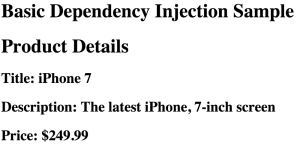
This is a sequel to my blog “Getting Familiar with Angular 2 DI“. This time we’ll create a simple application that will use a ProductComponent to render product details and ProductService to supply the data about the product. In this blog I use Angular 2 Beta.0. The working application is deployed as a plunk and it’ll produce the page shown below.

ch4_running_di_sample

The ProductComponent can request the injection of the ProductService object by declaring the constructor argument with a type:

constructor(productService: ProductService)

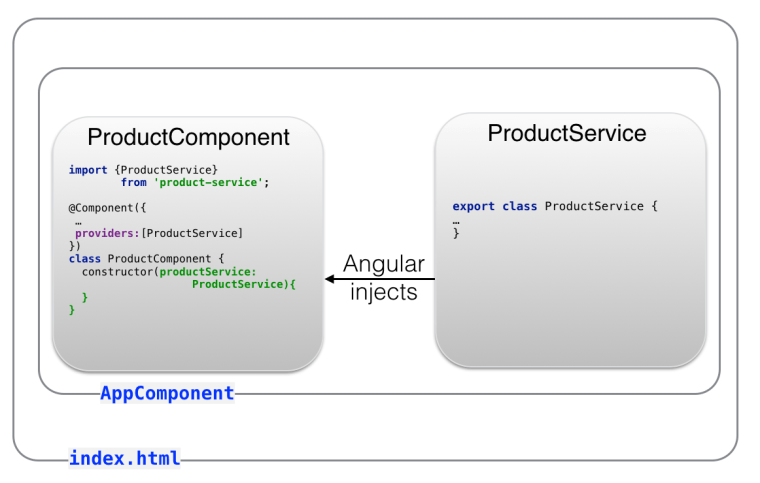
The following image will give you a better idea how these component and service are related.

ch4_di_product2

The file index.html will host a root component of your app’s main page, which in turn will include ProductComponent that’s dependent on ProductService.

Note the import and export statements. The class definition of the ProductService starts with the export statement to enable other components to access its content. Accordingly, the ProductComponent includes the import statement providing the name of the class (ProductService) and the module being imported (located in the file product-service.ts).

The providers statement instructs Angular to provide an instance of the class ProductService when requested.

The ProductService may communicate with some server requesting details for the product selected on the Web page, but we’ll skip this part for now and will concentrate on how this service can be injected into ProductComponent.

Our app will consist of the following files:

* The file index.html that loads the code of the app.ts that renders root component, which uses ProductComponent
* The ProductComponent will be implemented in the file product.ts.
* The ProductService will be implemented in a file product-service.ts.

The file index.html performs three functions:

* Loads Angular and its dependencies
* Hosts a root component represented by the tag .
* Configures SystemJS and uses it to load the application component from app.ts.

<!DOCTYPE html>
<html lang="en">
<head>
  <meta charset="utf-8">
  <title>Angular DI Sample</title>
  
  <script src="https://npmcdn.com/angular2@2.0.0-beta.0/bundles/angular2-polyfills.js"></script>
  <script src="https://npmcdn.com/typescript@1.7.5/lib/typescript.js"></script>
  <script src="https://npmcdn.com/systemjs@0.19.8/dist/system.src.js"></script>
  <script src="https://npmcdn.com/rxjs@5.0.0-beta.0/bundles/Rx.js"></script>
  <script src="https://npmcdn.com/angular2@2.0.0-beta.0/bundles/angular2.dev.js"></script>
  
  <script>
    System.config({
      transpiler: 'typescript',
      typescriptOptions: {emitDecoratorMetadata: true},
      packages: {app: {defaultExtension: 'ts'}}
    });
  </script>
</head>
<body>
  <disample-root>Loading...</disample-root>
  <script>System.import('app/app');</script>
</body>
</html>

The AppComponent is shown next. It hosts the ProductComponent, hence it needs to import and declare it in the property directives. Note that the name of the selector of the AppComponent is disample-root, and we used it in index.html above:

import {bootstrap} from 'angular2/platform/browser';
import {Component} from 'angular2/core';
import ProductComponent from './components/product';

@Component({selector: 'disample-root',
  template: `<h1> Basic Dependency Injection Sample</h1>
             <di-product-page></di-product-page>`,
  directives: [ProductComponent]
})
class AppComponent {}

bootstrap(AppComponent);

Based on the tag it’s easy to guess that there is a child component with the selector having this value. This selector is declared in ProductComponent, which will get its dependency (ProductService) injected via the constructor:

import {Component, bind} from 'angular2/core';
import {ProductService, Product} from "../services/product-service";

@Component({
  selector: 'di-product-page',
  template: `<div>
  <h1>Product Details</h1>
  <h2>Title: {{product.title}}</h2>
  <h2>Description: {{product.description}}</h2>
  <h2>Price: \${{product.price}}</h2>
</div>`,
  providers:[ProductService] // 1
})

export default class ProductComponent {
  product: Product;

  constructor( productService: ProductService) { // 2

    this.product = productService.getProduct();
  }
}

1. The providers property maps a token that we’ll use in the code to the name of the class that will represent this token. In this example the name of the token is the same as the name of the class: ProductService, so we use a short notation without invoking the function provide() with useClass.

2. Injection of the ProductService will be done here, and Angular will instantiate this object.

We separate the type ProductService from the actual implementation of this service being that a class ProductService, OtherProductService or something else. Replacing one implementation with another comes down to changing the providers line.

The constructor of ProductComponent invokes getProduct() on the service and places a reference to the returned Product object into the class variable product, which is used in the HTML template.

Using double curly braces the above markup allows us to bind the properties title, description, and price of the class Product. The file product-service.ts includes the declaration of two classes: Product and ProductService.

export class Product {  // 1
  constructor(
    public id: number,
    public title: string,
    public price: number,
    public description: string) {
  }
}

export class ProductService { 

  getProduct(): Product { // 2
    return new Product(0, "iPhone 7", 249.99, "The latest iPhone, 7-inch screen");
  }
}

1. The class Product represents a product (a.k.a. Value Object). This type will be used outside of this script so we export it.

2. For simplicity the method getProduct() always returns the same product with hard-coded values. In the real-world applications you’d need to get it from some external data source, e.g. by making an HTTP request to a remote server.

To see this example in action open this plunk and press the button Run.

The instance of ProductService was injected into ProductComponent, and the product component rendered product details provided by the server.

In the next section you’ll see a ProductService decorated with the @Injectable annotation, which is used for generating DI metadata in cases when the service itself uses DI as shown in the next section. It’s not needed here because this service doesn’t get any other service injected into it.

Injecting an Http Service

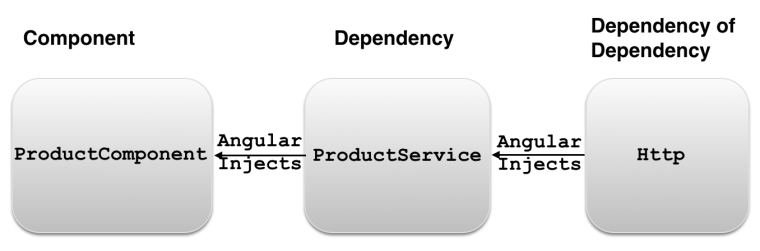
Pretty often a service would need to make an HTTP request to get the requested data. The ProductComponent depends on ProductService which will be injected using Angular DI mechanism. If the ProductService needs to make an HTTP request, it’ll have an Http object as its own dependency. The ProductService will need to import the Http object from Angular, and should have a constructor for injecting Http object. The following diagram shows that ProductComponent depends on ProductService, which has its own dependency: Http.

ch4_dependency_dependency

The following code snippet illustrates the Http object injection into ProductService and retrieval of products from the file products.json:

import {Http} from 'angular2/http';
import {ProductService} from "./product-service";

@Injectable
export class ProductService {
    constructor(private http:Http){
      let products = http.get('products.json');
    }
   // other app code goes here
   // will write a separate blog about using Http
}

The class constructor is the injection point, and we need to add the provider of object of the Http type. Angular offers a special object HTTP_PROVIDERS, which provides injectables for making HTTP requests and could be specified as an application-level dependency during the bootstrap. The application-level providers are available for all application components. The ProductComponent would need to explicitly specify the HTTP providers:

import {HTTP_PROVIDERS} from 'angular2/http';

class ProductComponent {

  constructor(private productService: ProductService) {}
  
  // The rest of the code goes here 
}
bootstrap(ProductComponent, [HTTP_PROVIDERS]);

Leaky Abstraction Detected. You need to specify the HTTP provider at the component level despite the fact that Http is used only inside the service (ProductComponent <-ProductService <- Http). This breaks encapsulation of the ProductService. In other words, the ProductService abstraction leaks. Imagine that ProductService is used in 10 different components, and for some reason we decided to update ProductService replacing HTTP with another way of getting product information. This would require code modification not only inside the ProductService, but also in those 10 components.

I'd like to keep the declaration of HTTP provider inside the ProductService, but currently it’s not possible. I raised this question at Angular’s repo, and you can join the discussion here

.

In one of the future blogs I'll show you how easy it is to replace one implementation of the service with another using Angular DI.

Stay tuned for more Angular 2 blogs. My other Angular-related blogs are here. Manning is publishing the drafts of our book “Angular 2 Development with TypeScript“. Starting on February 28, we’ll also teach an online class on Angular 2.

Recording of the Lesson “Intro to AngularJS”

Over the last years we’ve been teaching AngularJS for various audiences. Besides  traditional live instructor-led class for private clients, we (Farata Systems) teach 3-4 public trainings online each year. Typically we run these trainings on weekends allowing developers from around the world sharpen their skills without missing their daytime job.

To give you an idea how our online training classes work, I’ve published a 3-hour long video of the session introducing AngularJS that I ran for a group of Java developers in March of 2015. For privacy reasons I’ve replaced the names of the participants in the chat window with nicks. This was the second lesson in this training and I started it with a brief review of the homework given after covering JavaScript (ES5) in the first lesson.

In 2016 we’ll be offering a training class covering Web application development with Angular 2 and TypeScript. The enrollment to the class that starts on February 28th is open.

Getting familiar with Angular 2 Dependency Injection

My Angular 2 blogging series continues and today’s I’ll present you a high level overview of Dependency Injection (DI) in Angular 2.

Any Angular 2 application is a collection of components, directives, and classes that may depend on each other. While each component can explicitly instantiate its dependencies, Angular can do this job for you by using its Dependency Injection mechanism.

I’ll explain you how Angular 2 does it, but first let’s make sure that we are not confusing DI as a design pattern vs a specific DI implementation as the same design patterns can be implemented differently depending on the software you use. For example, in the Java world there are multiple implementations of DI. For example, Spring Framework has the most popular DI container. Java EE has its own implementation of Resource Injection and Context Dependency Injection. Angular 2 has its own implementation of the DI pattern.

DI and IoC Patterns

Imagine a fulfillment center that ships products. An application that keeps track of shipped products may create a product object and invoke a function that creates and saves a shipment record:

var product = new Product();
createShipment(product);

The function createShipment() depends on the existence of an instance of the Product object. In other words, the function createShipment() has a dependency: Product. The function itself doesn’t know how to create it. The calling script should somehow create and inject this object as an argument to the function createShipment().

But the thing is that the class Product should be implemented by the offshore team, and it’s not ready yet (oh, those Indians!). So you decided to provide a MockProduct as a substitute for an actual Product until the offshore team catches up.

In our two-line code sample it’s an easy change, but what if the function createShipment() has three dependencies (e.g. product, shipping company, and fulfillment center) and each of these dependencies has it’s own dependencies? Now creating a different set of mock objects for createShipment() would need a lot more manual code changes. Would it be possible to ask someone to create instances of dependencies (with their dependencies) for us?

This is what the Dependency Injection pattern is about: if an object A depends on the object of type B, the object A won’t explicitly instantiate the object B (as we did with the new operator above), but rather will get it injected from the operational environment. In other words, the object A just needs to declare, “I need an object of type B, could someone please give it to me?” The words of type are important here. The object A does not request a specific implementation of the object and will be happy as long as the injected object is of type B.

The Inversion of Control (IoC) is a more general pattern than DI. Rather than making your application to use some API from a framework (or a software container), the framework will create and supply the object(s) that the application needs. The IoC pattern can be implemented in different ways and DI is one of the ways to provide required objects. Angular plays a role of the IoC container and can provide the required objects according to your component’s declarations.

Benefits of DI and how Angular Does It

Angular offers a mechanism that helps registering and instantiating component dependencies. In short, DI helps in writing code in a loosely coupled way and makes your code more testable and reusable.

Loose coupling and reusability

Say you have a ProductComponent that gets product details using the ProductService class. Without DI your ProductComponent needs to know how to instantiate the class ProductService. It can be done by multiple ways, e.g. using new, calling getInstance() on some singleton object, or maybe invoking a createProductService() on some factory class. In any case ProductComponent becomes tightly coupled with ProductService.

If you need to reuse the ProductComponent in another application that uses different service for getting product details, you’d need to modify the code (e.g. productService = new AnotherProductService()). DI allows to decouple application components by sparing them from the need to know how to create their dependencies. Consider the following ProductComponent sample:

@Component({
providers: [ProductService]
})
class ProductComponent {
product: Product;

  constructor(productService: ProductService) {

     this.product = productService.getProduct();
  }
}

In Angular applications written in TypeScript you do this:

a) Register an object(s) for DI by specifying a provider(s), which is an instruction to Angular on how to instantiate this object when the injection is requested
b) Declare a class with a constructor that has the argument(s) of types that match provider’s types

When Angular sees a constructor with an argument of a particular type, it starts looking for a provider that specifies HOW to instantiate an object of this type. If the provider’s found in the current component, Angular will use it to instantiate an object and inject it to the component via its constructor.

Angular 2 inject object only via constructor’s argument, which greatly simplifies this process comparing to Angular 1.

In the above code snippet the line providers:[ProductService] is a shortcut for provide(ProductService, {useClass:ProductService}). We’re instructing Angular to provide a token ProductService using the class of same name. Using the method provide() you can map the same token to a different class (e.g. to emulate the functionality of the ProductService while someone else is developing a real service class).

Now that we’ve added the providers property to the @Component annotation of the ProductComponent, Angular’s DI module will know that it has to instantiate the object of type ProductService.

The ProductComponent doesn’t need to know which concrete implementation of the ProductService type to use – it’ll use whatever object was specified as a provider. The reference to the ProductService object will be injected via the constructor’s argument, and there is no need to explicitly instantiate ProductService inside ProductComponent. Just use it as in the above code, which calls the service method getDetails() on the ProductService instance magically created by Angular.

If you need to reuse the same ProductComponent in a different application with a different implementation of the type ProductService, change the providers line, for example:

providers: [provide(ProductService, {useClass:AnotherProductService})]

Now Angular will instantiate AnotherProductService, but your code that was using the type ProductService won’t break. In our example using DI increases reusability of the ProductComponent and eliminates its tight coupling with ProductService. If one object is tightly-coupled with another, this may require substantial code modifications should you want to reuse just one of them in another application.

Testability

DI increases testability of your components in isolation. You can easily inject mock objects where if their real implementations are not available or you want to unit-test your code. Say you need to add a login feature to your application. You can create a LoginComponent (it would render ID/password fields) that uses a LoginService component, which should connect to a certain authorization server and check the user’s privileges. The authorization server has to be provided by a different department (oh, those Russians), but it’s not ready yet.

You finished coding the LoginComponent, but you can’t test it for reasons that are out of your control, i.e. dependency on another component developed by someone else.

In testing we often use mock objects, which mimic the behavior of real objects. With a DI framework you can create a mock object MockLoginService that doesn’t actually connect to authorization server but rather has hard-coded access privileges assigned to the users with certain ID/password combinations. Using DI you can can write a single line injecting the MockLoginService into your application’s Login view without the need to wait till the authorization server is ready.
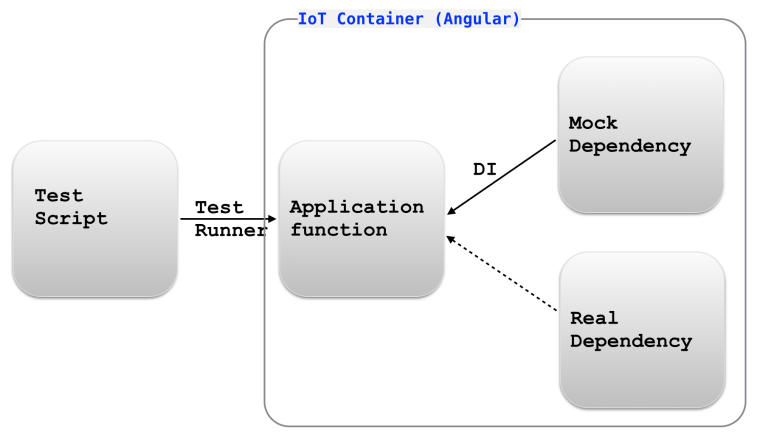
ch5_di_testing

Later on, when that server is ready you can modify the providers line so Angular would inject the real LoginService component as shown below.

Injectors and Providers

Angular 2 has such concepts as injectors and providers. Each component has an Injector capable of injecting objects into other components. Any Angular application is hosted by some root component, so you always have a root injector available. An injector knows how to inject one object of the specified type into the constructor of another.

Providers allows you to map a custom type (or a string) to a concrete implementation of this type (or a value). We’ll be using ProductComponent and ProductService for all code samples in this chapter, and if your application has only one implementation of a particular type (i.e. ProductService), specifying a provider can look like this:

provide(ProductService,{useClass:ProductService});

IMPORTANT: The providers property is specified inside the @Component annotation, which allows Angular to register the class for future injection. No instance of the ProductService is created at this point. The providers line instructs the injector as follows: “When you’ll need to construct an object that has an argument of type ProductService create an instance of the registered class for injection into this object”.

The shorter notation of the above provider statement looks like this:

providers:[ProductService]

If you need to inject a different implementation of a particular type, use the longer notation:

provide(ProductService, {useClass: MockProductService});

Now we’re giving the following instruction to the injector:
“When you’ll need to inject an object of type ProductService into a constructor’s argument create an instance of the class MockProductService”.

The injector knows what to inject, and now we need to specify where to inject the object. In TypeScript it comes down to declaring a constructor argument specifying its type. The following line shows how to inject the object of type ProductService into the constructor of some component.

constructor(productService: ProductService)

The constructor will remain the same regardless of which concrete implementation of ProductService was specified as a provider. Below is a sample sequence diagram of the injecting process.

ch5_injector_time_diag

Injection With TypeScript vs ES6

TypeScript simplifies the syntax of injection as it doesn’t require using any DI annotations. Specifying the type of the constructor’s argument is all that’s needed:

constructor(productService: ProductService)

There is one requirement for the above line to work though: the TypeScript compiler need to be configured with the option “emitDecoratorMetadata”: true. With this option the generated JavaScript code will contain the metadata information about the argument type so Angular will know which type of the object to inject.

I use the SystemJS polyfill for on-the-fly TypeScript transpiling, we can add the following TypeScript compiler’s option in the configuration file for SystemJS:

typescriptOptions: {
  "emitDecoratorMetadata": true
}

If you’d be writing the class in ES6, its constructor would need the @Inject annotation with explicit type:

constructor(@Inject(ProductService) productService)

How to Create a Provider

The function provide() returns an instance of the Provider object, and this function can be called in different ways because the object creator can be a class or a factory (with or without dependencies).

* To map a type to an instance of a class use the function provide() where the second argument is an object with the useClass property.

* If you have a factory function that instantiates objects based on certain criteria use the function provide(), where the second argument is an object with the useFactory property, which specifies a factory function (or a fat arrow expression) that knows how to instantiate required objects. The factory function can have an optional argument with dependencies, if any.

* To provide a string with simple injectable value (e.g. a URL of a service ) use the function provide() where the second argument is an object with the useValue property.

In the next blogs I’ll write a sample app to illustrate the use of useClass, useFactory, and useValue.

I’m co-authoring the book “Angular 2 Development with TypeScript“, and Manning offers the electronic version of whatever content is ready (138 pages are available). Starting on February 28, we’ll also teach an online class on Angular 2, and you can use the promo code blogreader to get $50 off the price.

Angular 2: Passing Data to Routes

This blog was updated on July 26, 2016. The RC.5 version of the code is available at https://github.com/Farata/angular2typescript/tree/master/chapter3/router_samples

In the previous blog I did a high-level overview of Angular 2 router and wrote a basic routing application that demonstrated displaying different components in a predefined area of the window. We often need not only display a component, but also pass some data to it. For example, if we navigate from the Home to the Product Detail route we need to pass the product ID to the destination route. The destination route can access passed parameters using the class ActivatedRoute, which knows its URL segment, the outlet, and allows to access parameters passed to this route. I’ll illustrate the use of both classes by modifying the app from the previous blog.

Extracting parameters from ActivatedRoute

When the user navigates to the ProductDetail route, we need to pass the product ID to this route to display details of the particular product. Let’s modify the code of the application from the previous blog so the RootComponent can pass the product ID to ProductDetailComponent. The new version of this component will be called `ProductDetailComponentParam`, and Angular will inject the object of type ActivatedRoute into this component. The ActivatedRoute object will contain the information about the component loaded into outlet.

import {Component} from '@angular/core';
import {ActivatedRoute} from '@angular/router';

@Component({
  selector: 'product',
  template: `<h1 class="product">Product Detail for Product: {{productID}}</h1>`, // 1
  styles: ['.product {background: cyan}']
})
export class ProductDetailComponentParam {
  productID: string;

  constructor(route: ActivatedRoute) { // 2
    this.productID = route.snapshot.params['id']; // 3
  }
}
\

1. Display the received product ID using binding.

2. The constructor of this component requests Angular to inject the object ActivatedRoute.

3. Get the value of the parameter named id and assign it to the class variable productID, which is used in template via binding.

NOTE: In the above code sample we’ve used the property snapshot of ActivatedRoute to get the values of the parameter passed to the route. The snapshot` property represents a component loaded into the outlet at a particular moment of time. The class ActivatedRoute has another property called params of type Observable, which allows a component that’s loaded by the router to subscribe to the incoming parameters that may be changing over time. See this blog for details.

The ActivatedRoute object will contain all parameters that are being passed to this component. If you write your Angular application in TypeScript, you just need to declare the constructor’s argument specifying its type, and Angular will know how to instantiate and inject this object.

In the next code sample we’ll change the configuration of the product route and routerLink to ensure that the value of the product ID will be passed to the component ProdutDetailComponentParam if the user choses to go this route.

import {bootstrap} from '@angular/platform-browser-dynamic';
import {Component} from '@angular/core';
import {LocationStrategy, HashLocationStrategy} from '@angular/common';
import {provideRouter, ROUTER_DIRECTIVES} from '@angular/router';

import {HomeComponent} from './components/home';
import {ProductDetailComponentParam} from './components/product-param';

@Component({
    selector: 'basic-routing',
    directives: [ROUTER_DIRECTIVES],
    template: `
        <a [routerLink]="['./']">Home</a>
        <a [routerLink]="['./product', 1234]">Product Details</a> // 1
        <router-outlet></router-outlet>
    `
})
class RootComponent {}

bootstrap(RootComponent, [
    provideRouter([
        {path: '',            component: HomeComponent},
        {path: 'product/:id', component: ProductDetailComponentParam} // 2
    ]),
    {provide: LocationStrategy, useClass: HashLocationStrategy}
]);

1. This time there are two elements in the array given to routerLink: the path that the route starts with and the number that represents product ID.

2. The path property has an additional URL segment /:id.

The routerLink property for the “Product Details” link is initialized with a two-element array. The elements of the array build up the path specified in the routes configuration given to provideRouter(). The first element of the array represents the static part of the route’s path: /product. The second element represents the variable part of the path, i.e. /:id.

For simplicity we’ve hard-coded the ID to be 1234, but if the class RootComponent had a variable productID pointing at the corresponding object, we could have written { productID} instead of 1234. For the product detail route Angular will construct the URL segment /product/1234.

The following screenshot shows how the product detail view will be rendered in the browser:

ch4_basic_routing_product_detail_param

Note the URL. Angular router replaced the path /product/:id with /product/1234.

Let’s review the steps that Angular performed under the hood for rendering the main page of the application:

1. Check the the content of each routerLink to find the corresponding routes configurations.

2. Parse the URLs and replace the parameter names with actual values where specified.

3. Build the actual <a href=””> tags that the browser understands.

The next screenshot shows a snapshot of the home page of our application with the Chrome Dev Tools panel open.

ch4_basic_routing_product_detail_href

Since the path property of the configured Home route had an empty string, Angular didn’t add anything to the base URL of the page. But the anchor under Product Details link is already converted into a regular HTML tag. When the user clicks on the Product Details link, the router will attach a hash sign and add /product/1234 to the base URL so the absolute URL of the Product Detail view will become http://localhost:8080/#/product/1234.

Passing static data to a route

While most of the times parent components will be passing data to their children, Angular also offers a mechanism to pass additional data to components at the time of the route configuration. For example, besides the dynamic data like product ID we may need to pass a flag indicating if the application runs in production environment or not. This can be done by using the data property of your route configuration. For example, our route for the product details can be configured as follows:

{path: 'product/:id', component: ProductDetailComponentParam ,
                      data: [{isProd: true}]}

The data property can contain an array of arbitrary string key-values pairs. When the router will open ProductDetailComponentParam the data value will be located in the data property of the ActivatedRoute.snapshot:

export class ProductDetailComponentParam {
  productID: string;
  isProdEnvironment: string;

  constructor(route: ActivatedRoute) {
    this.productID = route.snapshot.params['id'];

    this.isProdEnvironment = route.snapshot.data[0]['isProd'];
  }
}

Passing data to a route via the data property is not an alternative to configuring parameters in the path property as in path: ‘product/:id’ but can come handy when you need to pass some data to a route during the configuration phase, e.g. is it a production or QA environment.

If you’re interested in learning Angular 2 in depth, enroll into one of our workshops. We’ll run the next public training   online starting from September 11, 2016. I can also deliver this workshop privately for your organization (send an email to training@faratasystems.com).

Angular 2 Router: High-Level Overview

Another update. Oops, they did it again. In RC.5 routing configuration has been changed. Will update this blog by the end of August of 2016.

This blog was updated on July 24, 2016.

Angular 2 framework (currently in RC.4) offers a simple way to implement client-side navigation for Single-Page Applications (SPA). The new component router (currently v.3.0.0-beta.2) allows you to configure routes, map them to the corresponding components, and arrange user’s navigation in a declarative way. While working on a routing chapter for our book “Angular 2 Development with TypeScript” I created a number of small applications illustrating various routing scenarios:

– Configuring routes in the root component
– Configuring routes in both root and child components
– Passing parameters to routes
– Using routing with both Hash- and History API-based strategies
– Using auxiliary (independent) routes

You can find these sample apps on Github where we host and update all code samples for the book (see the chapter3 folder). But in this blog I’ll do a high-level overview of Angular 2 routing and will show you a basic working example where the routing is configured in the root component of the application.

When you visit any Web page the location bar of your browser shows a URL (see, you already learned something new!). The URL consists of a protocol, domain name, port, and in case of GET requests may have parameters after the question mark:

http://mysite.com:8080/auction?someParam=123

If you change any character in the above URL and press Enter, this will result in sending a request to the server and page refresh, which is not what we want in SPA. In SPA, we want to be able to change a URL fragment that won’t result in the server request, but would update a portion of the Web page based on the JavaScript code that is already loaded to the browser.

Many years ago browsers started supporting a hash-sign (#) in the URLs, for example:

http://mysite.com:8080#/products/page/3

Any modifications to the right of the hash tag don’t trigger requests to the server, hence we can map these fragments to the client-side component to be rendered in the designated area of the Web page (in Angular 2 it’s identified by the tags <router-outlet></router-outlet>).

Then browsers started implementing HTML5 APIs, which includes History API that allows programmatically support the Back and Forward buttons as well as modify a URL fragment using the pushState() method. The history of all user’s navigations would be
stored on the client.

Angular 2 supports both location strategies using its classes HashLocationStrategy or PathLocationStrategy sparing you from adding the hash sign to the URL or calling pushState(). You just need to choose which strategy to use. I prefer hash-based navigation because a) it’s supported by all the browsers and b) History API-based navigation is unstable at this point.

Now let’s get familiar with the main players of Angular 2 navigation:

* Router – an object that represents the router during the runtime. You can use its methods navigate() or navigateByUrl() to navigate to a route either by the configured route path or by the URL segment respectively.

* RouterOutlet – a directive that serves as a placeholder within your Web page where the router should render the component

* provideRouter – maps URLs to components to be rendered inside the tag <router-outlet>

* RouterLink – a directive to declare a link to a route if the navigation is done using the HTML anchor tags. The RouterLink may contain parameters to be passed to the route’s component

* ActivatedRoute – an object that represents the route(s) that’s currently active

You configure routes for your app in a separate object of type RouterConfig and pass this object to the bootstrap() function. Router configuration is not done on the component level.

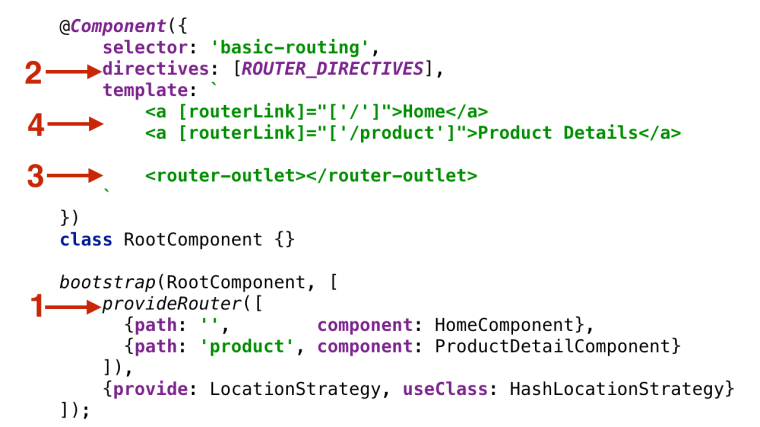
In a typical scenario, you’ll be implementing navigation in your application by performing the following steps:

1. Configure your app routes to map the URL segments to the corresponding components and pass the configuration object to bootstrap() as an argument. If some of the components expect to receive input values, you can use route parameters.

2. Add the property directives: [ROUTE_DIRECTIVES] to the @Component annotation. This will allow you to use the custom tag <router-outlet>, a property routerLink et al.

3. Define the viewport where the router will render components using the <router-outlet> tag.

4. Add the HTML anchor tags with bounded [routerLink] properties (square brackets denote property binding), so when the user clicks on the link the router will render the corresponding component. Think of a routerLink as a client-side replacement for the href attribute of the HTML anchor tag.

NOTE: Invoking the router’s methods navigate() or navigateByUrl() is an alternative to using [routerLink] for navigating to a route.

Here’s an illustration of the above steps:

ch3_router_4steps

The function provideRoute() takes the routes configuration that represents two URL segments that may be appended to the base URL:

* The empty string in the path means that there’s no additional URL segment after the base URL (e.g. http://localhost:8080), and the application should display the HomeComponent in the outlet area.

* The product path represents the URL segment product (e.g. http://localhost:8080/product), and the application should display the ProductDetailComponent in the outlet.

Let’s illustrate these steps in a sample application. Say we want to create a RootComponent that has two links Home and Product Details at the top of the page. The application should render either HomeComponent or ProductDetailComponent depending on which link the user clicks. The HomeComponent will render the text “Home Component” on the red background, and the ProductDetailComponent will render “Product Detail Component” on cyan.
Initially the Web page should display the HomeComponent as shown below.

ch4_basic_routing_home

After the user clicks on the Product Details link the router should display the ProductDetailComponent as shown on the next screenshot. Note the hash portion in the URL:

ch4_basic_routing_product_detail

The main goal of this exercise is to get familiar with the router, so our components will be very simple. Below is the code of HomeComponent:

import {Component} from 'angular2/core';

@Component({
    selector: 'home',
    template: '
<h1 class="home">Home Component</h1>
',
    styles: ['.home {background: red}'],
})
export class HomeComponent {}

The code of the ProductDetailComponent will look similar, but instead of red the property styles will define the cyan background:

import {Component} from 'angular2/core';

@Component({
    selector: 'product',
    template: '
<h1 class="product">Product Detail Component</h1>
',
    styles: ['.product {background: cyan}']
})
export class ProductDetailComponent {}

The [RootComponent] will define the routing of this application, and its code is shown next.

import {bootstrap} from '@angular/platform-browser-dynamic';
import {Component} from '@angular/core';
import {LocationStrategy, HashLocationStrategy} from '@angular/common';
import {provideRouter, ROUTER_DIRECTIVES, RouterConfig} from '@angular/router'; // 1

import {HomeComponent} from './components/home';
import {ProductDetailComponent} from './components/product';

@Component({
    selector: 'basic-routing',
    directives: [ROUTER_DIRECTIVES], // 2
    template: `
        <a [routerLink]="['/']">Home</a> // 3
        <a [routerLink]="['/product']">Product Details</a>
        <router-outlet></router-outlet> // 4
    `
})
class RootComponent {}

RouterConfig

bootstrap(RootComponent, [
    provideRouter([ // 5
      {path: '',        component: HomeComponent},
      {path: 'product', component: ProductDetailComponent}
    ]),
    {provide: LocationStrategy, useClass: HashLocationStrategy} // 6
]);

1. First we import all navigation-related directives and classes from @angular/router and @angular/common.

2. Since this component uses router directives we include ROUTER_DIRECTIVES in the annotation @Component.

3. Binding routerLink to routes (see callnote 5) using their paths / and /product.

4. The tag <router-outlet> specifies the area on the page where the router will render one of our components.

5. We’ve configured routes here. The empty URL segment represents the base URL.

6. During the application bootstrap we specify dependencies of the RootComponent in the square brackets.

In the above example we use HashLocationStrategy, which means if we configure the router with the URL segment product, Angular will add /#/product. The browser will treat the segment after the hash sign as an identifier of a specific segment of the Web page.

Note the use of brackets in the <a< tags. The square brackets around routerLink denote property binding, while brackets on the right represent an array with one element (e.g. [‘/’]). We’ll show you examples of array with two or more elements later in this chapter. The second anchor tag has the property routerLink bound to the route named ProductDetail.

In the above example HomeComponent is mapped to the path containing an empty string, which implicitly makes it a default route.

Here we’ve configured routes in the object and passed it as an argument to the provideRouter() function. The value in the routerLink will be matched with the configured path. In our case the <router-outlet> represents the area below the anchors.

The structure of the object that you can pass to provideRouter() is defined in the interface RouteConfig, which is an array of objects implementing the interface Route shown below (the question marks mean that the respective property is optional):

export interface Route {
    path?: string;
    pathMatch?: 'full' | 'prefix';
    component?: Type | string;
    redirectTo?: string;
    outlet?: string;
    canActivate?: any[];
    canDeactivate?: any[];
    data?: Data;
    resolve?: ResolveData;
    children?: Route[];
}

NOTE: Make sure that the file package.json includes “@angular/router”: “3.0.0-beta.2” in its dependencies section.

Handling 404 errors

If the user will enter a non-existing URL in your application, the router won’t be able to find the matching route and will print the error message on the browser’s console leaving wondering why not any navigation is happening. Consider creating an application component that will be displayed whenever the application can’t find the matching component.

For example, you can create a component named _404Component and configure it with the wild card path **:

provideRouter([
{path: '', component: HomeComponent},
{path: 'product', component: ProductDetailComponent},
{path: '**', component: _404Component}
])

Now, whenever the router can’t match the URL to any component, it’ll render the content of your  _404Component instead. The wild card route configuration has to be the last element in the array given to provideRouter(). The router always treats the wild card route as a match and any routes listed after the wild card’s one won’t even be considered.

That’s all for now. Stay tuned for more Angular 2 blogs. My other Angular-related blogs are here. Our next public online Angular 2 workshop starts on September 11, 2016.

Angular, TypeScript, SystemJS, and Browser Cache

I was writing a small app in Angular 2 in TypeScript with the on-the-fly transpiling by SystemJS. I needed to implement a router that would switch between the Home and ProductDetail views in a single page app.  The root component had two links and was supposed to render either Home or ProductDetail components depending on which link the user clicks. Angular 2 offers a pretty elegant syntax for this:


@Component({
    selector: 'basic-routing',
    directives: [ ROUTER_DIRECTIVES], 
    template: `<a [router-link]="['/Home']">Home</a>
              <a [router-link]="['/ProductDetail']">Product Details</a>
              <router-outlet></router-outlet>` 
})
@RouteConfig([
    {path: '/',        component: HomeComponent, as: 'Home'}, 
    {path: '/product/', component: ProductDetailComponent, as: 'ProductDetail'  } 
])
class RootComponent{}

Configure the router to map the component to a URL, use property binding in the form of [router-link], and specify the router outlet, where the content of one or the other component should be rendered. Nice and easy, isn’t it? Then I created a HomeComponent to render the text ‘Home Component’ , copy-pasted the code into ProductDetailComponent and started the app in the browser.

Running the app properly rendered the text Home Component, but when I clicked on the second link, nothing happened – the text Home Component remained in the browser window. Opened the code of the ProductDetailComponent. Oops… Forgot to change the text for rendering while copy-pasting – it still had ‘Home Component’. No biggies. Replaced it with ‘Product Detail Component’ and re-ran the app. Nothing changed. I still see Home Component no matter what link I click.

So what do we do with this nice syntax with Angular binding and TypeScript annotations? There is nothing to debug there. We need to debug the actual ES5 code that runs in the browser. Here’s the snapshot of my application window (on the left) after I clicked on the Product Detail link (Chrome Dev Tools panel is on the right):

ts1

Note that Angular router properly formed the URL for the product view. The template property in the file product.ts has the right content: ‘Product Detail Component’. Now let’s take a look at the content of the file product.ts!transpiiled, which was auto-generated by SystemJS:

ts2

This file was not regenerated and still has the ‘Home Component’ in the template property! Apparently, changing the string content is not a good enough reason for SystemJS to re-run the TypeScript transpiler and the browser used its cached version. Running the same example in FireFox worked as expected – its cache was clean so fresh ES5 files were generated by SystemJS.

Chrome Dev Tools has an option Disable Cache while Dev Tools open, and this would clear the cache on the page refresh. But if you want the browser cache to be refreshed even if the Dev Tools are not open, add the following lines between the head tags in your HTML file:

  <meta http-equiv="Cache-Control" content="no-cache, no-store, must-revalidate">
  <meta http-equiv="Pragma" content="no-cache">
  <meta http-equiv="Expires" content="0">

Manning opened the MEAP program for our upcoming book “Angular 2 Development with TypeScript”, where JSPM, SystemJS and TypeScript development is covered in greater details.